How to Setup or Edit Your Coaching Profile
Follow the steps below to setup your profile after acceptance as a coach on the platform. You will first need to navigate to your settings which can be found in the bottom left corner of your dashboard or at
www.coachazo.com/dashboard/settings
Building something people want
Personal Information and Photos
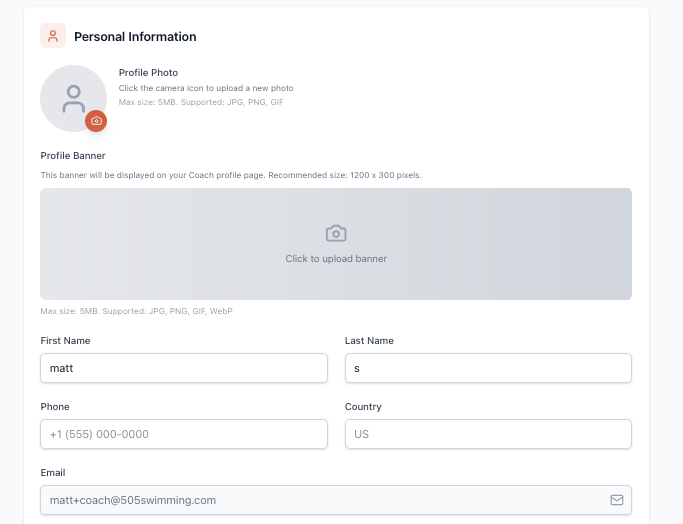
First add all of your personal information. Coaches should upload a profile photo that clearly shows their face. A profile banner is optional and can be used similar to a Facebook page to highlight more about who you are.
Building something people want
Badges
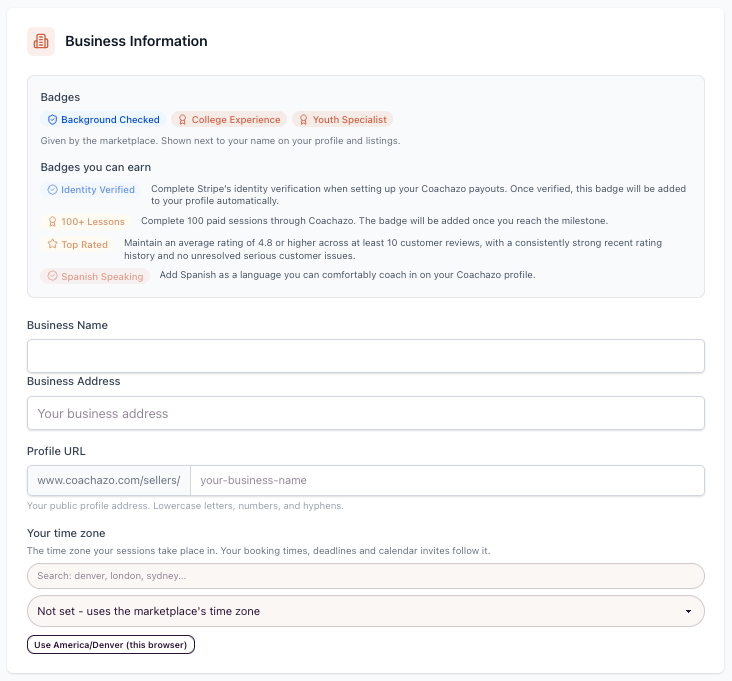
Here you can see the badges your profile has been awarded as well as what other badges you can earn. By default you will see none awarded to you until you complete the Stripe ID verification at which point you will receive the "Identity Verified" badge. You will be awarded the background check badge after we receive the copy of your completed background check. If you believe your profile should earn any of the other badges please contact us so that we can review.
Business Info
The business name and address fields can be left blank but you can add a custom profile URL if you wish.
Time Zone
By default, the timezone for all bookings will be set to US Mountain Time. If you are located in another time zone, you need to set that here in your profile. This can be changed at any time.
Building something people want
Profile Info
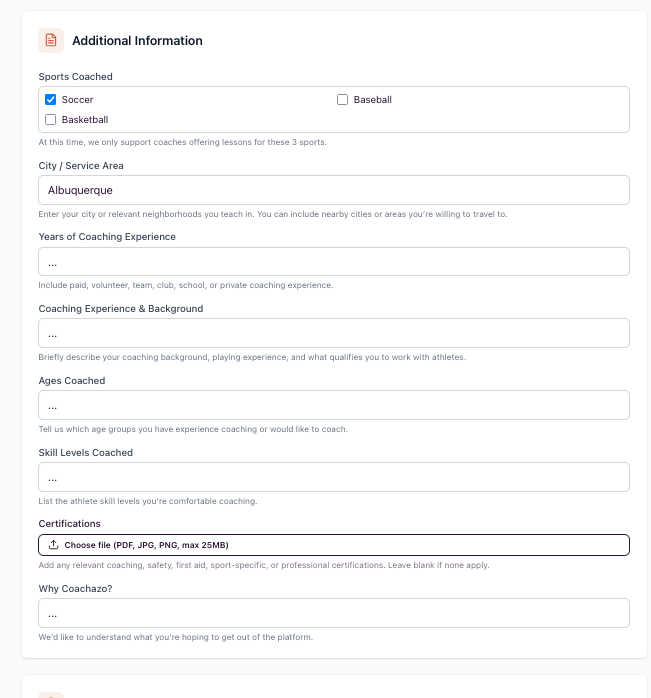
The info that you submitted as part of your application will appear here. You can edit this now and can come back to your profile settings at any time to make changes. All of these answers with the exception of the "Why Coachazo?" question will appear to prospective clients who view your profile.